OpenAI Dots Explained: What ChatGPT’s Always-On Agent Can Do
OpenAI's new dots work in the background on their own cloud computer. Here is what they can do, who can get one, and which settings matter before you hand one your apps.

In this article
- What are OpenAI dots?
- How do OpenAI dots work behind the scenes?
- Who can get OpenAI dots right now?
- How to set up your first dot
- Custom rules: what can a dot do without asking?
- What could you actually use a dot for?
- How is a dot different from a normal ChatGPT chat?
- OpenAI dots and your privacy: what to check first
- Limitations and open questions
- Should you try OpenAI dots now?
- OpenAI dots: FAQs
- Sources
OpenAI dots: the short answer
OpenAI dots are always-on personal agents inside ChatGPT, announced on September 29, 2026. Each dot runs on its own cloud computer with a browser, can connect to more than 4,000 apps through plugins, and can research in the background before you ask. At launch, OpenAI is rolling them out to Pro and Business Premium subscribers in eligible markets, and the first dot comes at no extra cost.
OpenAI dots are the company’s clearest attempt yet to turn ChatGPT from something you talk to into something that works for you. Instead of waiting for a prompt, a dot keeps going: it checks your connected apps, runs scheduled jobs and suggests ways to help. OpenAI unveiled the feature at its DevDay 2026 event, alongside new models and team tools.
This guide explains what a dot is, how it works, who can get one today and, most importantly, which controls to set before you connect your email or calendar. It is based on OpenAI’s announcement, its help documentation and launch coverage. TheJusGrow has not tested dots for this article, so we separate documented facts from our own judgement throughout.
What are OpenAI dots?
OpenAI describes dots as “remarkably capable, always-on agents built to handle everything.” In short, a dot is a named assistant that lives in your ChatGPT account and keeps working between conversations. It is powered by GPT-6 Astra, according to OpenAI’s launch post.
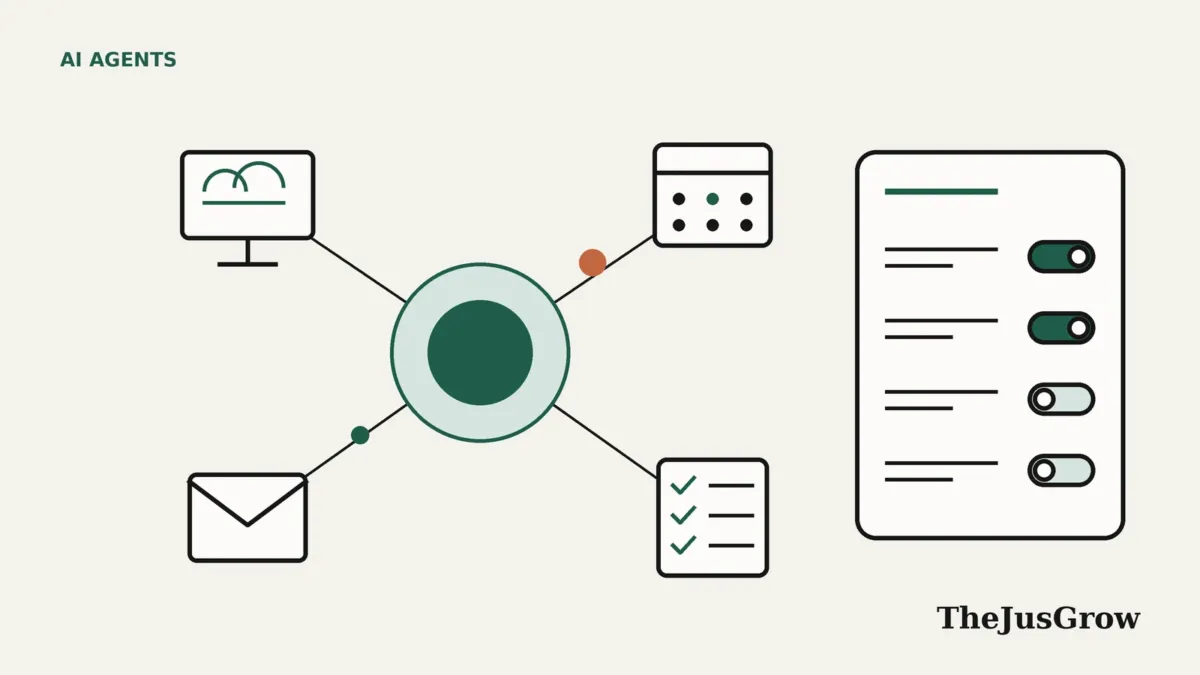
Overall, three things make a dot different from a normal chat. First, it has its own computer in the cloud, so it can browse and use tools without borrowing your laptop. Second, it can act proactively. For example, it can review connected apps in the background and suggest tasks. Third, it learns from your feedback over time and carries context across ChatGPT, Slack and Microsoft Teams.
If you are new to the idea, our explainer on what AI agents are covers the basics. In other words, a dot is a consumer-friendly version of that idea, packaged with an avatar, a name and a profile page.
How do OpenAI dots work behind the scenes?
To start, each dot gets a dedicated cloud computer with a browser. Also, you can open that computer at any time to see what the dot is doing. That transparency matters, because it lets you watch an agent’s steps rather than trust a summary.
Next, apps reach the dot through OpenAI’s plugin system, which OpenAI says covers more than 4,000 apps. Connected apps give the dot information to use in tasks. They also feed its memory, because the dot forms memories from what it sees there. Meanwhile, its background research is limited to read-only tools, so a dot researching on its own cannot send messages or control a browser.
You can also link your own computer. However, that option starts switched off. Once you allow it in the desktop app, the dot can use local skills and your browser when the cloud browser is blocked. Separately, dots can create cloud tasks in existing Codex environments, which matters mostly to developers.
Who can get OpenAI dots right now?
First, access depends on your plan and your country. The table below summarises OpenAI’s help documentation as of October 2026. Rollout can take several days, so you may not see the option immediately.
| Plan | Dot availability at launch | Notes |
|---|---|---|
| ChatGPT Pro | Rolling out | Not in the EEA, Switzerland or the UK at launch |
| Business Premium | Rolling out | Available in all supported ChatGPT regions |
| Enterprise, Edu, Healthcare | Beta | Off by default; an admin must enable it |
| Free, Go, Plus | Not included | OpenAI’s pricing page lists dots for Pro only among personal plans |
Your first dot is included in a Pro or Business Premium plan at no extra cost. Chatting with your dot does not count toward ChatGPT usage limits. However, tasks it runs through Codex or ChatGPT Work count normally. OpenAI also says the allowance includes extended limits during the first month after launch, so heavy use may cost more later.
How to set up your first dot
To begin with, OpenAI’s help centre describes a short onboarding flow. Here is the sequence in order, with our notes on what to decide at each step.
- Start on desktop. You can only create a dot in the ChatGPT desktop app or on the web from a computer. After that, you can talk to it on mobile.
- Name it and pick an avatar. The default handle is @yourname-dot. You can choose a custom name and a character or pet avatar.
- Connect apps carefully. Add plugins under Customize, then Plugins. Start with one or two apps you are comfortable sharing, such as a calendar.
- Set custom rules before real tasks. Decide which actions need your approval (see the next section).
- Give a first, low-stakes job. OpenAI’s own examples include calendar reviews, research and reminders. Attach files with the + button if needed.
- Watch the profile tabs. Progress appears under In progress, Scheduled and Completed, so you can check what the dot actually did.
Linking Slack also happens from desktop. Texting is in a limited beta for US Pro users only, run through a third-party provider, and standard message charges may apply. Phone calls are not supported at launch.
Custom rules: what can a dot do without asking?
In fact, custom rules are the most important setting in the product. That is because they let you decide, action by action, how much freedom the dot gets. OpenAI’s help centre lists four behaviours.
| Rule setting | What it means | Good fit for |
|---|---|---|
| Take action without asking | The dot just does it | Low-risk, reversible jobs such as drafting notes |
| Take action if pre-approved | Allowed only where you have approved it in advance | Repeat tasks you have checked before |
| Ask before taking action | The dot pauses for your yes | Sending messages, booking, accepting invites |
| Hand off to you | The dot stops and passes the task back | Payments, account changes, anything legal |
On top of your rules, OpenAI says an auto-review system checks actions that could affect your accounts against your instructions. In addition, a monitoring system can pause or stop a dot’s work if it detects a safety concern. Sensitive steps such as password changes always stay with you, and a dot can use saved passwords without the model seeing them.
Our editorial advice is simple: begin with “ask before taking action” for anything that leaves your account, such as an email, a calendar invite or a purchase. Then loosen rules one at a time once you trust the results.
What could you actually use a dot for?
OpenAI and launch coverage mention scheduling meetings, arranging travel, research, reminders, budget help and coding. The scenarios below are our illustrations of how those documented abilities might combine. They are not test results.
- A weekly calendar sweep. Ask the dot to review next week’s calendar every Sunday and flag clashes. It reports back, and you decide what to move.
- Trip research. Ask it to compare train and flight options for a set date, then summarise them in a table. Keep the actual booking as a hand-off.
- Recurring reminders. Set up reminders that run without new prompts, such as a monthly note to check subscriptions.
- Background reading. Point it at a topic you follow. Because proactive research uses read-only tools, this is one of the safer jobs to delegate.
If you already use scheduled AI tasks, a dot will feel like the next step: the same idea of work that runs on a timetable, but with a computer and app access behind it.
How is a dot different from a normal ChatGPT chat?
| Regular ChatGPT chat | A dot | |
|---|---|---|
| Starts work | When you send a prompt | On a schedule, on request, or proactively |
| Computer | None of its own | Its own cloud computer and browser |
| Where you talk to it | ChatGPT apps | ChatGPT, Slack, Teams; texting in limited beta |
| Memory | Your ChatGPT memories | Inherits those, plus its own from apps and tasks |
| Counts toward chat limits | Yes | Conversations with the dot do not |
Rival products also follow a similar path. For context, see our guides to Gemini Spark and Meta Muse, which cover how Google and Meta describe their own personal agents.
OpenAI dots and your privacy: what to check first
Because a dot sees everything you connect, privacy decisions come before convenience. Here are the documented details worth knowing.
- Memory is inherited. Your dot starts with your existing ChatGPT memories, then builds its own from apps and chats.
- Disconnecting is not deleting. According to OpenAI, removing an app does not erase data the dot already obtained. Only a full reset deletes dot-specific memories.
- Reset is permanent. It deletes the dot, its conversations, saved memories and scheduled tasks.
- Training settings differ by plan. OpenAI says Business, Enterprise and Edu content is not used for training by default, while personal plans let you choose.
- You can pause it. The profile menu has a pause and resume option, which is useful while travelling or during a sensitive week.
There is also a wider risk that applies to every browsing agent. Web pages and emails can contain hidden instructions meant to redirect an AI, a problem known as prompt injection. Tight custom rules and fewer connected apps limit the damage if that happens. For a broader view, read our guide on deleting what AI agents remember.
Limitations and open questions
OpenAI itself says dots “can still make mistakes, so always review consequential work.” Beyond that warning, several questions about OpenAI dots remain open as of October 2026.
- Cost after launch. Extended limits apply in the first month. OpenAI has not published how usage will scale afterwards, beyond saying you will be able to add more dots or increase speed and output.
- Regional gaps. Pro users in Europe’s EEA, Switzerland and the UK are excluded at launch.
- Multiple dots. OpenAI talks about teams of dots and specialist dots, but launch access covers a single dot.
- Real-world reliability. Independent evidence on how well dots handle messy, multi-step tasks is still thin, because the feature is days old.
Should you try OpenAI dots now?
This is editorial judgement rather than fact. If you already pay for Pro and spend hours on scheduling, research or follow-ups, a dot is worth exploring with strict rules. Start with read-only and reminder jobs, then expand.
On the other hand, you might wait if you handle sensitive client data on a personal plan, or if you cannot review the dot’s work regularly. Likewise, anyone not on Pro or Business Premium has no access yet, and there is no reason to upgrade on day one. Early agents such as OpenAI dots improve quickly, so a few weeks of reviews and documentation updates will tell you far more.
Key takeaways
- OpenAI dots are always-on ChatGPT agents with their own cloud computer and browser, launched on September 29, 2026.
- They are rolling out to Pro and Business Premium users; the first dot costs nothing extra.
- Custom rules decide whether a dot acts alone, asks first or hands a task back to you.
- Disconnecting an app does not erase what the dot learned; only a reset deletes its memories.
- Start with low-risk, read-only jobs and review anything consequential.
OpenAI dots: FAQs
Not on free plans. The first dot is included at no extra cost with ChatGPT Pro or Business Premium, and chatting with it does not count toward ChatGPT usage limits.
Only if you allow it. Linking your computer is optional and switched off by default. You turn it on in the ChatGPT desktop app.
Use the menu on the dot’s profile to pause or resume it. A reset permanently deletes the dot, its chats, memories and scheduled tasks.
Not for Pro subscribers at launch. OpenAI excludes the EEA, Switzerland and the UK for Pro, while Business Premium is available in all supported regions.
Sources
- OpenAI, “Introducing dots” (September 29, 2026)
- Engadget, “Dots are OpenAI’s new personal agents and soon you’ll be able to control several of them” (September 2026)
- OpenAI Help Center, “Getting started with your dot” (accessed October 2026)
- BetaNews, “OpenAI launches dots, always-on ChatGPT agents with their own computers” (September 2026)
- OpenAI, “DevDay 2026 Recap” (September 29, 2026)
- OpenAI, “ChatGPT pricing” (accessed October 2026)