Gemini Skills Explained: How Google’s Reusable AI Shortcuts Work
Google is replacing Gems with skills: saved instructions you call with a slash, stack together and, soon, share. Here is what changes and how to set them up.

In this article
- What are Gemini skills?
- How are skills different from Gems?
- Who can use Gemini skills right now?
- How do you create a Gemini skill?
- What files can a skill include?
- Why do Gemini skills use a SKILL.md file?
- What happens to your Gems?
- How do you manage, edit or delete a skill?
- What should you watch out for with Gemini skills?
- Who are Gemini skills for, and who can skip them?
- Gemini skills: FAQs
- Sources
Gemini skills: the short answer
Gemini skills are saved sets of instructions that you can reuse in the Gemini app. You type a slash and the skill name, or Gemini picks a relevant skill on its own. Skills can include reference files, and you can stack several in one prompt. Google says they are rolling out globally to adults and will replace Gems from November 2026.
Gemini skills are Google’s new answer to a familiar chore: typing the same long prompt again and again. Instead of pasting your house style, your meeting-prep checklist or your report format into every chat, you save it once. After that, a short slash command brings it back.
Google announced the feature on 30 September 2026 in a post on its official blog. The same post confirmed something bigger for regular users. Skills will replace Gems, the custom Gemini versions many people built over the past two years. So if you rely on Gems, this change affects you even if you never planned to try anything new.
This explainer covers what skills are, how they differ from Gems, how to create one, and the limits that Google’s own help pages list. It also explains why the file format behind skills matters beyond Google.
What are Gemini skills?
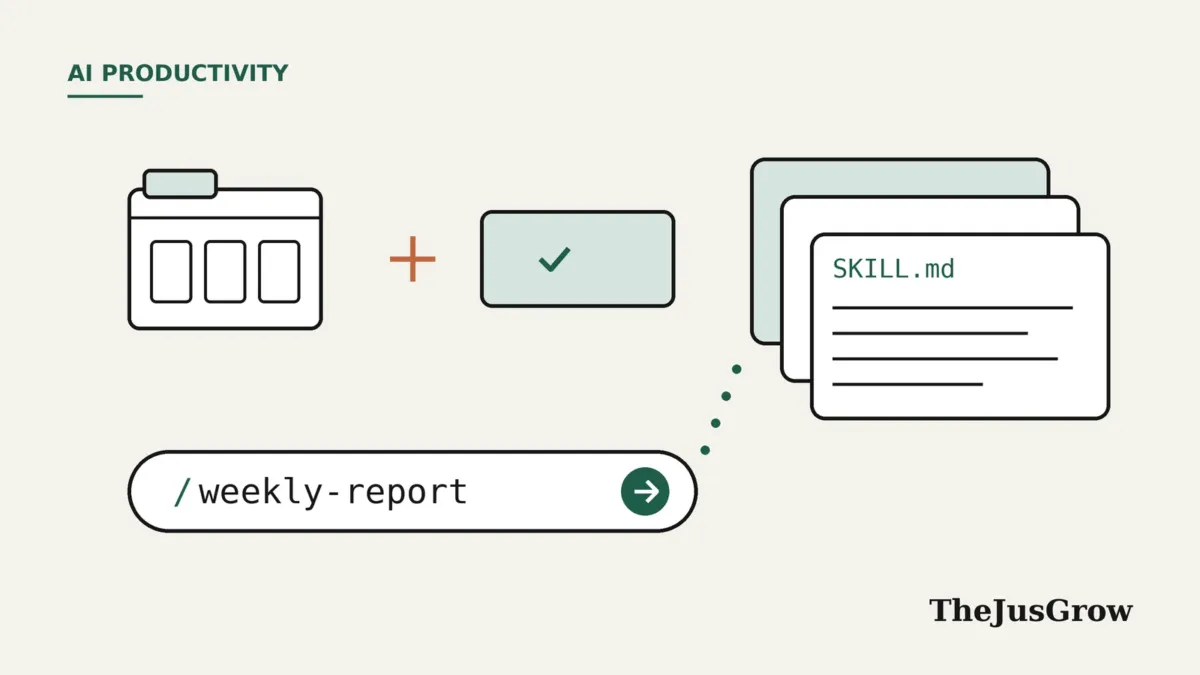
A skill is a named bundle of instructions. For example, you could create a skill called “weekly-report” that tells Gemini which headings to use, how long each section should be and what tone to take. Then, in any chat, you type “/weekly-report” and add the week’s notes.
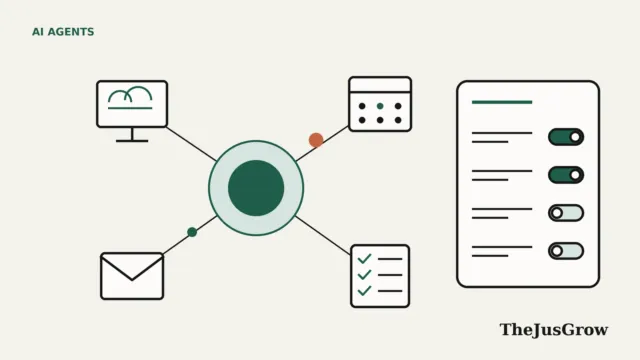
According to Google, skills work in three ways:
- On demand. You type “/” in the prompt bar and choose a skill from the list.
- Automatically. Gemini can use an enabled skill when your request matches what the skill is for.
- Stacked. You can combine several skills in one prompt, such as a writing-style skill plus a brand-guidelines skill.
Skills can also carry reference files. Google’s blog post mentions plain text documents, PDFs and images. As a result, a skill can hold your actual style guide or price list rather than a summary of it.
Google also ships ready-made skills. Its Gemini overview page lists “/prep-for-meetings”, which builds a brief from Google Calendar and other Workspace context. It also lists “/match-my-writing-style”, which learns from your writing across Workspace apps.
How are skills different from Gems?
Gems were custom versions of Gemini with their own instructions and files. You opened a Gem and chatted inside it. Skills flip that model around. Instead of switching to a separate assistant, you stay in your normal chat and pull in the instructions you need.
| Gems | Gemini skills | |
|---|---|---|
| How you use it | Open a separate Gem and chat inside it | Type “/” in any chat, or let Gemini apply it |
| Combining | You chat inside one Gem | Google says several skills can be stacked in one prompt |
| Reference files | Supported | Supported (text, PDFs, images and more) |
| File format | Not described as portable | Upload or download a folder with a SKILL.md file |
| Future | Being retired from November 2026 | Google’s replacement for Gems |
The stacking point is the practical difference. With Gems, a “meeting notes” helper and a “house style” helper lived apart. With skills, you can ask for meeting notes in house style in a single request.
Who can use Gemini skills right now?
Google says skills are rolling out globally in the Gemini app. In addition, they are already available in Gemini Spark, Google’s agent for longer tasks, which we covered in our Gemini Spark explainer. Google lists these conditions as of October 2026:
- Age: 18 or older. Google says support for younger users is coming.
- Account type: the help page for creating skills refers to personal Google Accounts. Workspace business, enterprise, nonprofit and education customers should get skills “in the coming weeks”.
- Activity setting: the help page says Keep Activity must be on.
- Apps: the Gemini web app, the mobile app and the Mac app.
Google’s announcement does not tie skills to a paid plan. However, because the rollout is gradual, the option may appear for you later than for others. Check Settings in the Gemini app if you can’t find it yet.
How do you create a Gemini skill?
Google’s help page on creating and managing skills describes four routes. Choose the one that fits how much control you want.
- Create with Gemini. Describe what you want in plain language, and Gemini drafts the skill. For instance: “Create a skill that formats my weekly status reports.”
- Start from a template. Pick one of Google’s prefilled options and edit it.
- Build it manually. Fill in a blank template with a name, a description and instructions.
- Upload files or a folder. The folder needs a SKILL.md file at its root.
The description matters more than it looks. Gemini uses it to decide when a skill is relevant, so a vague description can cause a skill to fire at the wrong time. Similarly, clear instructions beat clever ones. Our guide on how to write instructions for AI agents covers the basics, and they apply here too.
A simple skill you could copy
Here is an example of instructions for a skill called “plain-summary”. Treat it as a starting point rather than a template from Google:
Summarise the text I give you for a busy reader. Start with one sentence on the main point. Then list up to five key facts, each under 20 words. Flag any dates, prices or deadlines in bold. If something is unclear or missing, say so instead of guessing.
Once saved, you would type “/plain-summary” and paste an email, a school newsletter or a contract clause. Because the instructions never change, the results stay consistent from week to week.
What files can a skill include?
The help page gives fairly specific rules for uploads. First, the total size of all uploaded files must not exceed 100 MB. Second, the skill name should use lowercase letters and hyphens, such as “my-skill”.
| Supported | Not supported |
|---|---|
| .txt, .md, .pdf, .csv, .json, .yaml | .docx |
| .py and .sh script files | .xlsx |
| Image files | Other binary formats |
The gap here is notable. Word and Excel files are not on the list, so you may need to save a style guide as PDF or a price list as CSV first. Also, Google’s page lists script files as supported uploads. It does not, in the sections we read, explain when or how Gemini would use them. Therefore, treat scripts in a skill from someone else with the same caution you would give any downloaded software.
Why do Gemini skills use a SKILL.md file?
SKILL.md is not a Google invention. It is the core file of Agent Skills, an open format that Anthropic originally developed and then released as an open standard. In that format, a skill is a folder. The SKILL.md file holds a name, a description and instructions, and the folder can also contain scripts, references and templates.
The Agent Skills site lists many products that support the format, including Claude, ChatGPT and Codex, Gemini CLI, GitHub Copilot and VS Code. Meanwhile, Google’s Gemini overview page says you can upload skill files “from other platforms” through Settings, then Skills, then Upload.
In practice, this hints at portability. A skill written for one assistant may work, perhaps with edits, in another. That said, each product decides how it reads and runs skills, so don’t assume identical behaviour everywhere. The open format also explains one design choice. Agents load only each skill’s name and description at first, then read the full instructions when a task matches. That is why your description needs to say clearly when the skill should apply.
What happens to your Gems?
Google’s help page on the Gems transition sets out the timeline:
| Account type | When Gems go away |
|---|---|
| Personal Google Accounts | November 2026 |
| Workspace business, enterprise and nonprofit | March 2027 |
| Workspace education | June 2027 |
Google says it will automatically turn your Gems into skills when Gems close. Supported knowledge files should move across as well. However, the same page lists exceptions worth checking now:
- Files linked from GitHub are not currently supported in skills.
- Some Gem features will not carry over, including canvas, Deep Research, guided learning, and video and music creation.
- Opal, Google’s experimental mini-app builder, and Gems by Google Labs also end in November 2026.
Google says skills will gain sharing and Google Drive file support, two features people used in Gems. Until that arrives, a shared Gem may not behave the same way after migration. So if a Gem matters to your work, copy its name, description and instructions somewhere safe before November. You can then rebuild it as a skill yourself and compare the results.
This is not the first time a big AI company has retired its custom assistants. For a parallel, see our piece on custom GPTs and retired ChatGPT plugins.
How do you manage, edit or delete a skill?
Everything sits under Settings, then Skills, in the Gemini app. From there, Google’s help page says you can:
- Deactivate or activate a skill, so Gemini stops using it without losing it.
- Edit the description or instructions directly, use “Edit with Gemini”, or upload a replacement file.
- Download a skill as a .zip file, which works as a backup.
- Delete a skill. Google warns that this cannot be undone.
Google also lists two known issues. The mobile app won’t save manually created skills. Also, skills with uploaded files can’t be edited on mobile or Mac. For now, the web app is the safest place to build and edit.
What should you watch out for with Gemini skills?
Skills are useful, but they are still instructions to an AI system. Keep these points in mind:
- Automatic use cuts both ways. Gemini may apply a skill you forgot about. If answers look oddly formatted, check which skills are active.
- Skills from strangers deserve care. A shared skill is a set of instructions plus files. Hidden instructions in a file could steer the assistant, a risk known as prompt injection. Read a skill before you upload it.
- Sensitive files stay sensitive. Think twice before adding contracts, medical letters or client data to a skill. Instead, keep reference files to what the task truly needs.
- Activity settings matter. The help page says Keep Activity must be on to use skills. Review what that setting stores in your Google Account before you switch it on.
- Output still needs checking. A skill makes results consistent, not correct. Check facts, figures and dates before you send anything.
Who are Gemini skills for, and who can skip them?
Skills suit people who repeat the same kind of task. Good fits include:
- Freelancers and small-business owners who write proposals, invoices or updates in a fixed format.
- Parents and carers who summarise school or care emails into the same short checklist each week.
- Anyone with a personal writing style they want Gemini to follow every time.
- Heavy Gem users, who will need to move across before November 2026 anyway.
On the other hand, you can safely ignore skills if you use Gemini for one-off questions. Likewise, if you are under 18 or have Keep Activity switched off, the feature isn’t available to you yet, according to Google.
A quick starter checklist
- List three prompts you type at least once a week.
- Turn the most repetitive one into a skill on the Gemini web app.
- Write a one-line description that says exactly when the skill should apply.
- Test it on three real examples and adjust the instructions.
- Download a .zip backup, then copy any important Gems before November 2026.
Key takeaways
- Gemini skills are saved instructions you call with “/” or let Gemini apply automatically.
- You can stack skills and attach reference files, up to 100 MB in total per Google’s help page.
- Skills use a SKILL.md file, the same file at the heart of the open Agent Skills format.
- Gems for personal accounts end in November 2026, with automatic migration to skills.
- Back up important Gems now, and treat skills from strangers with care.
Gemini skills: FAQs
Google’s announcement does not tie skills to a paid plan, and it says they are rolling out globally in the Gemini app. However, you must be 18 or over, and the help page says Keep Activity must be on.
Google says it will automatically turn your Gems into skills when Gems go away, in November 2026 for personal accounts. However, some features such as canvas and Deep Research will not carry over, so back up important Gems first.
Google says you can upload skill files from other platforms, and Gemini skills use a SKILL.md file like the open Agent Skills format. Still, each product reads skills in its own way, so test an imported skill before relying on it.
Open the Gemini app and go to Settings, then Skills. You can also type a forward slash in the prompt bar to see the skills available to you.
Sources
- Google, “Let skills in Gemini tackle your most repetitive tasks” (30 September 2026)
- Gemini Apps Help, “Create & manage skills for Gemini Apps” (accessed October 2026)
- Gemini Apps Help, “About the transition from Gems to skills” (accessed October 2026)
- Google, “Gemini skills: custom AI shortcuts & productivity” (accessed October 2026)
- Agent Skills, “Agent Skills Overview” (accessed October 2026)