Gemini Spark, Explained: What Google’s Personal AI Agent Can Do (and Who Can Use It)
Google's 24/7 agent can work across Gmail, Calendar, Drive and websites you're signed into. It also comes with more conditions than most people realise — plan, account type, country and a privacy setting.

Gemini Spark: the short answer
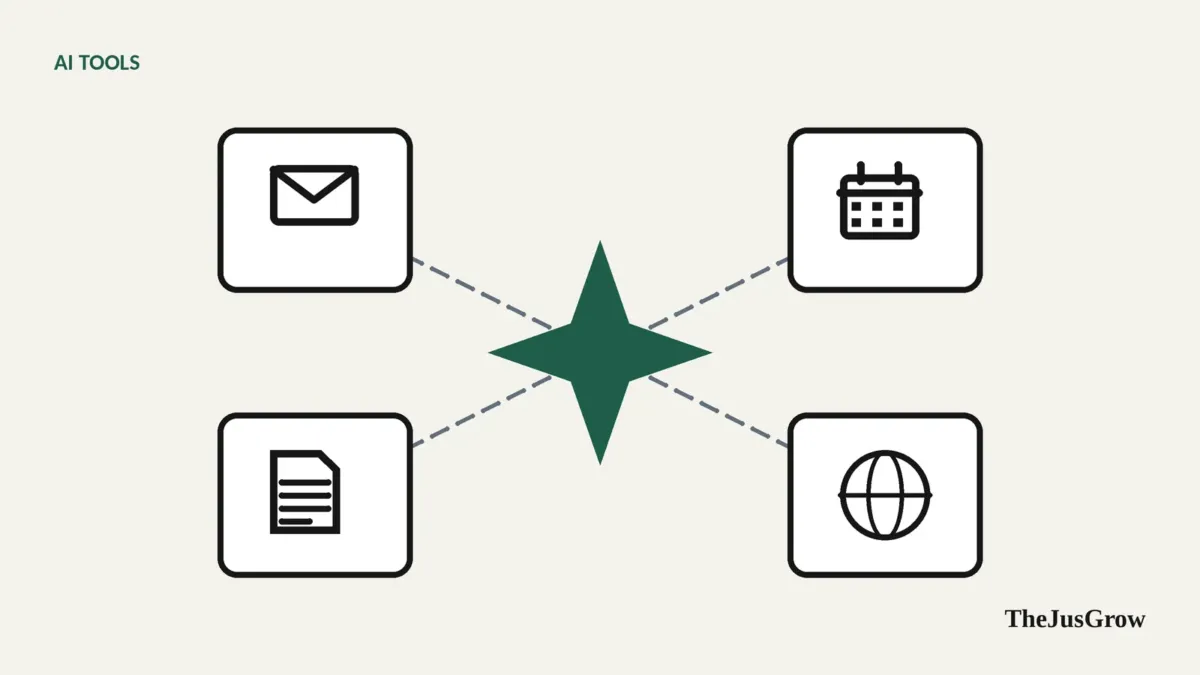
Gemini Spark is Google’s personal AI agent, announced in May 2026. It can carry out multi-step tasks and run them on schedules, using Gmail, Calendar, Drive, Docs, Sheets, Slides, Maps, websites you’re signed into and other connected apps. To use it you must be 18 or over, use a personal Google account, have Google AI Pro or Ultra, and have Keep Activity switched on. It isn’t available in the European Economic Area, the UK, Switzerland or Nigeria.
Google pitched Spark as an agent that keeps working when your laptop is closed. Its documentation is unusually detailed about what Spark can do, and about the conditions and risks, which is exactly what you want to read before handing an agent your inbox.
What Spark can do
Google describes three building blocks:
- Tasks, put the agent to work on something, drawing on your connected apps.
- Skills, teachable routines you can reuse.
- Schedules, run tasks at set times, on an ongoing basis.
Spark can work with Google apps such as Gmail, Calendar, Drive, Docs, Sheets, Slides, YouTube and Maps. Google says these connections are turned off by default, you switch them on in settings. It can also use information from websites you’re signed into, your location and Google’s “Personal Intelligence” features, and connect to third-party apps.
Examples Google gives include drafting email replies, sorting messages by priority and extracting action items from long threads. Tip from Google’s own documentation: type “set up”, “get started” or “interview me” into a Spark task and it will walk you through creating your first skills and schedules.
The requirements
| Requirement | Detail |
|---|---|
| Age | 18 or over |
| Account | A personal Google account; not available with work or school accounts “for now” |
| Plan | Google AI Pro or Ultra |
| Setting | Keep Activity must be on |
| Country | Wherever Gemini Apps are supported, except the European Economic Area, Nigeria, Switzerland and the UK |
Two of these are easy to miss. Keep Activity is the setting that controls whether Google keeps your Gemini activity; with Spark, you can’t separate the agent from that retention choice. And the work-account exclusion means Spark isn’t a tool for your employer’s Google Workspace, at least for now.
Where Spark runs: remote browser vs your Chrome
Spark can do browser tasks two ways, with different trade-offs:
- Remote browser. Tasks can continue even if you close your device. When a site asks you to sign in, the task waits for you.
- Your local Chrome. Spark can use the sites you’re already signed into. Google’s documentation says you’ll need to keep your device and Chrome awake and running. With your permission, Google says Spark “can also use login info you saved in Password Manager to sign into loyalty programs and online accounts.”
The local option is more convenient and a bigger grant of trust.
Safety features, and Google’s own warnings
Google says Spark is designed to ask for review and confirmation before certain actions: sending communications, modifying your data, making purchases and submitting web forms. Before a browser task, it chooses which sites to use and may share your personal information with them. Google suggests reviewing the plan.
Google’s documentation is also frank about limits:
- Don’t enter sensitive details in a task. Google says not to enter sign-in info, payment details or other sensitive information directly into the task thread.
- Offline schedules. “If a schedule runs when you are offline, you may not be able to stop Gemini from completing an unintended action.”
- No guarantees. Google says its safety features “do not guarantee protection against all risks.”
Payments with spending limits
In its May 2026 shopping announcement, Google said its Agent Payments Protocol (AP2), designed to let agents make purchases with strict spending limits and brand restrictions, would begin rolling out in its products starting with Gemini Spark. That pairs with Google’s new Universal Cart.
How to start safely
- Check eligibility (plan, personal account, country) before paying for an upgrade.
- Review Keep Activity and decide if you’re comfortable with it.
- Connect one app at a time. Calendar is a good first choice.
- Start with a read-only task, such as a morning brief of your calendar and important emails.
- Keep schedules few and narrow until you’ve watched them run.
- Prefer the remote browser for tasks that don’t need your logins.
- Review connections regularly, see how to review apps connected to your accounts.
Who it’s for
Spark suits people who live in Gmail and Google Calendar, pay for Google AI Pro or Ultra, and want an agent that works in the background. If you’re in the EU or UK, use a work account, or prefer not to keep Gemini activity, look at alternatives such as ChatGPT Work, our comparison of everyday agents covers the options.
Key takeaways
- Gemini Spark is Google’s personal agent for multi-step and scheduled tasks across Google apps and the web.
- Requirements: 18+, personal Google account, Google AI Pro or Ultra, Keep Activity on; not in the EEA, UK, Switzerland or Nigeria.
- It asks before sending, modifying data, buying or submitting forms, but Google warns offline schedules may not be stoppable.
- Using your local Chrome gives Spark your signed-in sites; the remote browser is the more cautious choice.
- Start with one app and a read-only task, and keep schedules narrow.
Gemini Spark: FAQs
No. You need a Google AI Pro or Ultra subscription, a personal Google account and Keep Activity switched on, and you must be 18 or over.
No. Google says it is not available in the European Economic Area, the UK, Switzerland or Nigeria.
It can, with approval. Spark asks before sending, changing data, buying or submitting forms, and payments can use spending limits. Google warns that some scheduled tasks running offline may not be stoppable, so keep schedules narrow.