How to See (and Remove) the Apps and AI Agents Connected to Your Google, Microsoft and Apple Accounts
Every time you click 'Allow' for an AI tool, it gets a key to part of your account — and the key stays until you take it back. Here's where to find them all in five minutes.

How to review apps connected to your accounts: the short answer
To review which apps can access your accounts: Google, go to myaccount.google.com/linkedapps; personal Microsoft account, go to microsoft.com/consent; work or school Microsoft account, go to myapplications.microsoft.com; Apple, on iPhone go to Settings > [your name] > Sign in with Apple, or on the web account.apple.com > Sign-In and Security. Remove anything you don’t recognise or no longer use. Do it every three months.
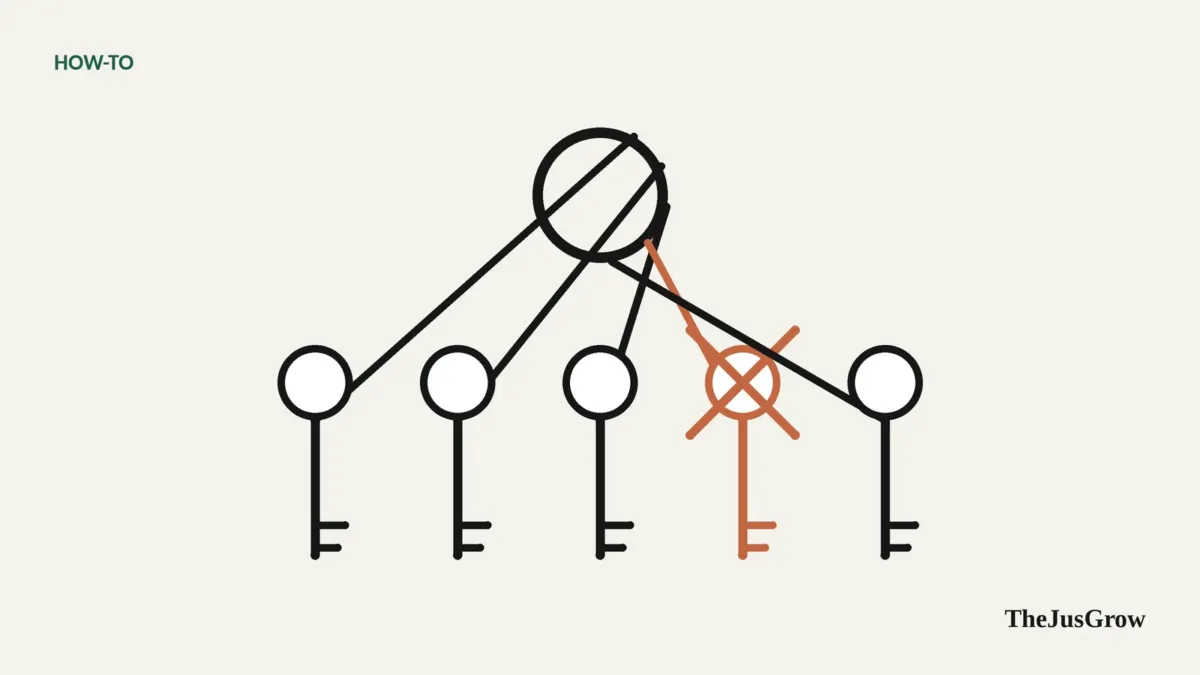
When you connect an AI agent to your email or calendar, you usually see a screen like “ChatGPT wants to access your Google Account” with a list of permissions and an Allow button. Clicking Allow doesn’t give away your password, it gives the app a token, a kind of key, to specific parts of your account. That’s good design.
The catch: the key keeps working until you revoke it. Most people have dozens of forgotten keys handed out to apps, games, browser extensions and, increasingly, AI tools. Every one is a door. Here’s how to check them.
Why this matters more with AI agents
AI agents are unusually capable guests. An agent with access to your email can read it, and depending on the permissions, send from it. Because agents also read content written by strangers, they can be targeted by prompt injection. The less an agent can reach, the less can go wrong. Reviewing connections is the single most effective habit for staying in control.
Google’s help page is titled “Manage links between your Google Account & apps from other developers.”
- Go to myaccount.google.com/linkedapps and sign in.
- You’ll see apps grouped by how they’re connected.
- Select an app and choose See details to review what it can access.
- Remove access if you no longer use or recognise it, and confirm.
Google distinguishes two kinds of link:
| Type | What it means | What removing it does |
|---|---|---|
| Sign in with Google | You use your Google account to log in to that app | Stops automatic sign-in; your data stored with the app stays there |
| Has access to your Google Account | The app can access specific data, such as Gmail, Calendar or Drive | The app can no longer access that data, and related features may stop working |
The second type is the one to scrutinise. Look especially for anything with access to Gmail, Drive or Contacts.
Microsoft (personal accounts)
For Outlook.com, Hotmail, Xbox and other personal Microsoft accounts:
- Go to microsoft.com/consent and sign in.
- You’ll see a list of apps and services connected to your account.
- Select one to see which data it can access.
- Choose Remove these permissions and confirm.
Microsoft (work or school accounts)
If your email is provided by your employer or school through Microsoft 365:
- Go to myapplications.microsoft.com.
- Hover over an app and select the … menu, then Manage your application.
- Review the permissions. The top section shows permissions you granted; you can Revoke permissions there.
- Permissions granted by your administrator appear separately and can’t be removed by you, ask your IT team if something looks wrong.
For work accounts, also check your organisation’s rules before connecting any AI tool at all.
Apple
Apple’s equivalent is Sign in with Apple, which lets you log in to apps with your Apple Account (and optionally hide your real email address).
On iPhone or iPad:
- Open Settings and tap your name.
- Tap Sign in with Apple (on some versions under Sign-In & Security).
- Choose an app, tap to stop using your Apple Account with it, and confirm.
On the web: go to account.apple.com, then Sign-In and Security > Sign in with Apple.
Apple notes that if a developer has several apps linked to one sign-in, stopping use with one affects all their apps. If you used Hide My Email, you can manage forwarding separately in iCloud settings.
Don’t forget the AI apps themselves
Connections go both ways. Inside ChatGPT, Gemini, Claude, Perplexity and similar tools there’s usually a Connectors, Apps or Connected apps section listing which of your services the AI can reach. Review it too, and switch off anything a current task doesn’t need.
Also check scheduled tasks in those apps. A forgotten weekly task can keep using its access long after you’ve stopped reading the results.
What to remove
Remove an app’s access if:
- you don’t recognise it;
- you haven’t used it in months;
- it has broader access than its job needs (a quiz game with access to your Gmail, say);
- it’s an AI tool you tried once and never went back to.
Keep access for tools you actively use, but re-check what they can do. If an app offers a narrower permission (read-only instead of read-and-send), prefer that.
Make it a habit
Put a recurring reminder in your calendar every three months: “Review connected apps. Google, Microsoft, Apple, AI tools.” It takes five minutes and closes doors you forgot you’d opened. For the full picture of agent permissions, see are AI agents safe to use?
Key takeaways
- Clicking “Allow” gives an app a lasting key to part of your account, until you revoke it.
- Google: myaccount.google.com/linkedapps. Microsoft personal: microsoft.com/consent. Work/school: myapplications.microsoft.com. Apple: Settings > your name > Sign in with Apple.
- Scrutinise anything with access to email, files or contacts, and remove what you don’t use.
- Also review connectors and scheduled tasks inside your AI apps.
- Repeat every three months.
Apps connected to your accounts: FAQs
Every three months is a good habit, and straight away after you stop using an AI tool or suspect a breach.
Not always. Removing access stops the app reading your account from now on, but data it already copied may stay with that company. Ask the provider to delete it if it matters.
Anything you do not recognise or no longer use, then anything with access to your email, files or contacts that does not need it.
Sources
- Google Account Help, “Manage links between your Google Account & apps from other developers”
- Microsoft Q&A, “Managing apps and services connected to our Microsoft Accounts” (microsoft.com/consent)
- Microsoft Support, “Edit or revoke application permissions in the My Apps portal”
- Apple Support, “Manage your apps with Sign in with Apple”