ChatGPT Cloud Browser: Should You Let It Sign In for You?
ChatGPT Work can now log in to websites and keep working after you leave. Here is how the sign-in actually works, what OpenAI promises, and a simple way to decide which accounts it should touch.

In this article
- What is the ChatGPT cloud browser?
- How does sign-in work in the ChatGPT cloud browser?
- Why a saved session matters more than a hidden password
- Which accounts should you let the cloud browser use?
- How to use the ChatGPT cloud browser more safely
- ChatGPT cloud browser vs Gemini in Chrome auto browse
- What websites may block, and why
- Who should use it, and who should wait
- ChatGPT cloud browser: FAQs
- Sources
ChatGPT cloud browser: the short answer
The ChatGPT cloud browser is a browser that runs on a computer in OpenAI’s cloud, which ChatGPT Work uses to complete web tasks. Since August 25, 2026, it can sign in to websites. You type your details into a secure form that the model can’t see, and the login can persist for later tasks. It suits low-risk accounts; keep banking, email and health accounts off it.
The ChatGPT cloud browser changes what “asking ChatGPT to do something” means. Until recently, an AI agent that hit a login page had to stop and hand the task back to you. Now, on paid plans, ChatGPT Work can sign in, fill forms and keep going after you close the app.
That is useful. It is also a real change in trust, because an agent that is signed in to a website holds much of the same access you do. This guide explains how the sign-in works, according to OpenAI’s own documentation, and offers a practical way to decide which accounts are worth connecting.
Everything here is based on publicly documented capabilities and sources checked in September 2026. TheJusGrow has not tested the feature for this article.
What is the ChatGPT cloud browser?
OpenAI’s help page on the cloud browser describes it as ChatGPT Work’s “own browser on a separate computer in the cloud”. It can read pages, click buttons, fill in forms and work on signed-in websites. In addition, tasks keep running after you leave, and they pause when ChatGPT needs your input or confirmation.
This sits inside ChatGPT Work, the mode that replaced the older agent mode. If you are new to it, our explainer on ChatGPT Work covers the basics. The cloud browser is separate from the browser on your laptop or phone. So it has its own cookies and sessions, and signing in there does not sign you in on your own device.
As of September 2026, OpenAI says the cloud browser is available in ChatGPT Work on paid plans in supported regions, excluding Free and Go. It works on the web and on mobile. OpenAI’s August 25 release note names Plus and Pro users as the first to get signed-in tasks.
How does sign-in work in the ChatGPT cloud browser?
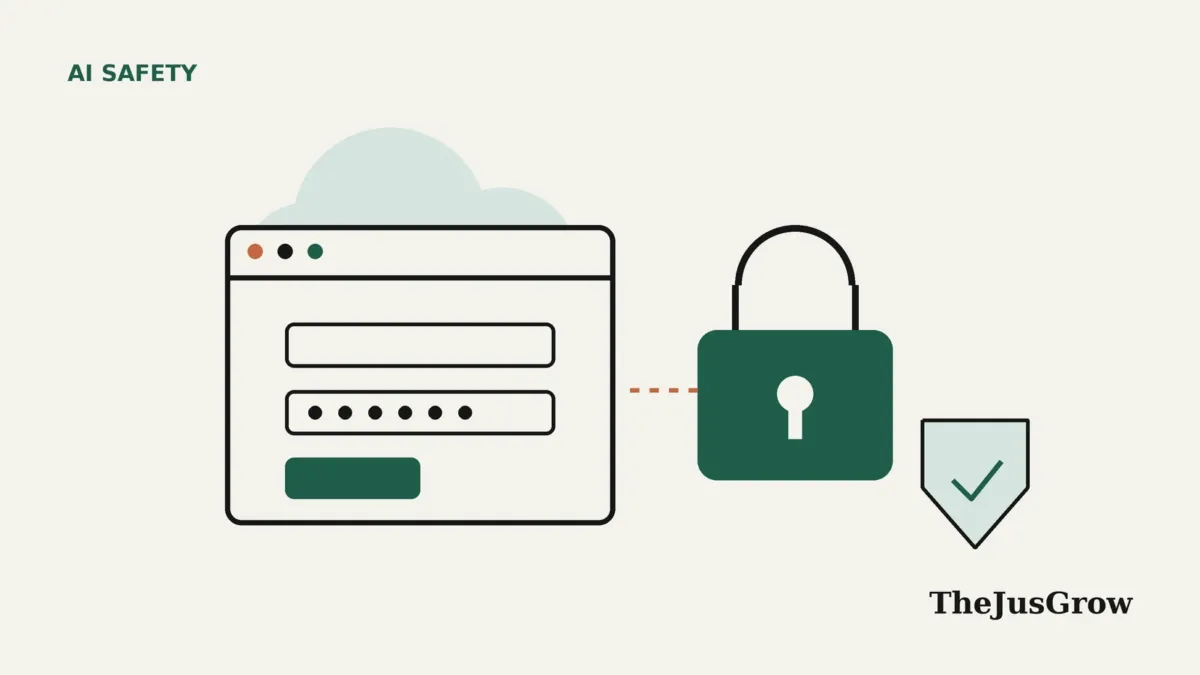
When ChatGPT reaches a supported sign-in page, it shows you a secure form. You enter your username and password there, along with any two-factor code the site asks for. According to OpenAI, “the username and password entered there are not visible to the model”, and ChatGPT does not store those credentials.
OpenAI also says an extra review model checks each sign-in request for signs of phishing or deception before it reaches you. That matters because a malicious page could try to trick an agent into asking for a login that the task never needed.
After you sign in, the session stays active. In OpenAI’s words, “the authentication will persist for future tasks until it expires”. That is convenient, because you won’t need to log in each time. However, it is also the part to think hardest about.
| Question | What OpenAI documents |
|---|---|
| Does the model see my password? | No. You type it into a secure form the model can’t see |
| Is my password stored? | OpenAI says ChatGPT does not store sign-in credentials |
| Does the login last? | Yes, it persists for future tasks until it expires |
| Is it my normal browser? | No. It uses separate cookies and sessions in the cloud |
| Will it ask before paying? | It asks before hard-to-reverse actions, such as bookings or payments |
| Can I take over? | Yes. You can ask for a link to control the cloud browser directly |
Why a saved session matters more than a hidden password
Most coverage has focused on the password, because OpenAI says the model never sees it. That promise is valuable. Still, a hidden password is not the same as limited access. Once the site has accepted your login, the cloud browser holds a session that can act as you until it expires or you clear it.
Decrypt made the same point in August 2026. It noted that a signed-in agent holds the same access you would, until you clear its browsing data. In other words, the risk shifts from “someone steals my password” to “something persuades the agent to misuse a session it already has”.
That second risk is not theoretical. OpenAI itself says it has tested the cloud browser for prompt injection, phishing and unintended actions. Even so, it states that these “safeguards do not eliminate every risk”. If you want the background, our guide to prompt injection explains how text on a web page can try to steer an agent.
Which accounts should you let the cloud browser use?
A simple rule works well: connect accounts where a mistake would be annoying, not damaging. Then add friction as the stakes rise. The table below is our editorial suggestion, not an OpenAI policy.
| Risk level | Examples | Our suggestion |
|---|---|---|
| Low | Library account, restaurant bookings, a community forum, a loyalty program with no stored card | Reasonable to connect; clear the session when the job is done |
| Medium | Online shops with a saved card, travel sites, a streaming service | Connect only for a specific task, and read every confirmation carefully |
| High | Email, cloud storage, social media you rely on for work | Avoid, because these accounts can reset passwords for everything else |
| Keep off | Banking, investments, tax, government services, health portals | Do these yourself; the downside of an error is too large |
Email deserves special caution. Your inbox is usually the recovery route for every other account. So an agent session inside it is effectively a master key. If you want AI help with email, a dedicated connector with limited permissions is usually a better fit. We compare options in AI agents for email.
How to use the ChatGPT cloud browser more safely
You can lower the risk a lot with a few habits. None of them require technical skills.
- Turn on multi-factor authentication for your ChatGPT account first, since stored sessions now live behind that login.
- Give narrow instructions that name the site and the exact task, for example “renew my library books on the city library site”.
- Only sign in when ChatGPT’s secure form appears; never paste passwords, codes or card details into the chat itself, as OpenAI advises.
- Read each confirmation prompt fully before approving a booking, payment or message.
- Use takeover mode for sensitive steps, so you click the final button yourself.
- Clear the site’s data in Settings when the task is finished, which signs the cloud browser out.
OpenAI’s help page says you can clear data for all sites or for individual sites, and that clearing a site’s data signs you out. Decrypt reported the control sits under Settings, then Cloud browser. Because menus change, check OpenAI’s help page if you can’t find it.
It is also worth checking who has signed in to your ChatGPT account. On September 25, 2026, OpenAI added a security history log. We explain it in our guide to the ChatGPT Privacy Center and security history.
ChatGPT cloud browser vs Gemini in Chrome auto browse
Google offers a similar feature, auto browse, inside Gemini in Chrome. The design is different in one important way. Gemini works in your own Chrome browser, and it uses Google Password Manager to sign in, after asking your permission.
| ChatGPT cloud browser | Gemini in Chrome auto browse | |
|---|---|---|
| Where it runs | A separate browser in OpenAI’s cloud | Your own Chrome browser on a computer or Android |
| How it signs in | You type details into a secure form the model can’t see | Google Password Manager signs in, after asking permission |
| Confirmations | Before hard-to-reverse actions such as bookings and payments | Before actions such as sending messages, submitting forms and opening highly sensitive financial or health sites |
| Taking control | Takeover link | Stop or “Take over task” buttons |
| Availability | Paid ChatGPT plans excluding Free and Go, in supported regions | US users aged 18+ on Google AI Pro or Ultra, in English |
Neither company claims its agent is error-free. Google’s Chrome help page warns that Gemini “might misunderstand what you want it to do”. It adds that you are responsible for Gemini’s actions during a task. That is a useful reminder for any AI agent you let into your accounts.
What websites may block, and why
Some sites won’t work with the ChatGPT cloud browser at all. OpenAI notes that a website may block ChatGPT even if it works normally in your own browser, and that those rules come from the site owner. In addition, some services forbid automated access in their terms, so check before you hand over an account you depend on.
Meanwhile, a newer route is emerging. Some sites now publish tools for AI agents through WebMCP, and on August 31, 2026, OpenAI said ChatGPT Work can use those tools in its desktop app’s built-in browser. Our guide to what WebMCP is explains why that approach can be more predictable than an agent clicking around a page.
Who should use it, and who should wait
The ChatGPT cloud browser makes most sense for busy people with repetitive, low-stakes web chores. Think of renewing books, comparing prices across accounts or filling in the same booking form each month. It is also handy on mobile, because the task keeps running while you do something else.
By contrast, if you manage money, health records or someone else’s affairs online, wait. At minimum, keep those accounts out of it. For a broader view of the trade-offs, see our guide to whether AI agents are safe.
Quick checklist before you sign in
- Is this account low-risk if something goes wrong?
- Is the sign-in happening in ChatGPT’s secure form, not in the chat?
- Does the task need a login at all?
- Will you read the confirmation before anything is paid, sent or booked?
- Will you clear the site’s data when you are done?
Key takeaways
- The ChatGPT cloud browser is a separate browser in OpenAI’s cloud that ChatGPT Work uses; since August 25, 2026, it can sign in to websites.
- OpenAI says the model never sees your password and ChatGPT does not store it, but the login session can persist for future tasks.
- A persistent session is the real risk, so connect low-stakes accounts and keep email, banking and health accounts off it.
- Use takeover mode for sensitive steps, read every confirmation and clear site data when you finish.
- Gemini in Chrome offers a similar auto browse feature that signs in through Google Password Manager instead.
ChatGPT cloud browser: FAQs
According to OpenAI, no. You type your username and password into a secure form that is not visible to the model, and OpenAI says ChatGPT does not store those sign-in credentials.
Clear that site’s data in ChatGPT’s settings. OpenAI says you can clear data for one site or for all sites, and that clearing a site’s data signs you out.
No. As of September 2026, OpenAI says it is available in ChatGPT Work on paid plans in supported regions, excluding Free and Go.
OpenAI says ChatGPT asks for confirmation before actions that are hard to reverse or create a financial, legal or account commitment, such as confirming a booking or making a payment.
Sources
- OpenAI Help Center, “Using cloud browser in ChatGPT” (accessed September 29, 2026)
- OpenAI Help Center, “ChatGPT — Release Notes” (entries dated August 25, August 31 and September 25, 2026)
- Decrypt, “Red Flag? OpenAI’s Agentic ChatGPT Work Signs Into Your Accounts Without You” (August 27, 2026)
- Google Chrome Help, “Ask Gemini in Chrome to complete tasks for you with auto browse” (accessed September 29, 2026)