AI Spreadsheet Agents: ChatGPT, Copilot, Gemini and Claude Compared
Four assistants can now build and edit workbooks from plain-English requests. Here is who can use each one, how they show changes and where they go wrong.

In this article
- What are AI spreadsheet agents?
- The four main AI spreadsheet agents compared
- ChatGPT for Excel and Google Sheets
- Agent Mode in Excel (Microsoft Copilot)
- Gemini in Google Sheets
- Claude in Excel
- Which AI spreadsheet agent fits which person?
- How to use AI spreadsheet agents well: a practical workflow
- Limits and risks of AI spreadsheet agents
- Who should use AI spreadsheet agents, and who should wait?
- AI spreadsheet agents: FAQs
- Sources
AI spreadsheet agents: the short answer
AI spreadsheet agents are assistants that work inside Excel or Google Sheets and can build, edit and explain a workbook from plain-English requests. The main options in 2026 are ChatGPT for Excel and Google Sheets, Microsoft’s Agent Mode in Excel, Gemini in Google Sheets and Claude in Excel. They save time on formulas and first drafts, but you still need to check every number.
AI spreadsheet agents have quickly moved from novelty to standard feature. A year ago, most AI help in spreadsheets meant asking a chatbot for a formula and pasting it in yourself. Now several assistants sit in a side panel, read the whole workbook and make changes directly, from new tabs to charts and pivot tables.
This guide compares the four best-known options, using each company’s public documentation as of September 2026. It covers who can use them, what they do, how they show their changes and where they go wrong. We haven’t tested these tools for this article. If you are new to the idea of AI that takes actions rather than just answering, start with our explainer on what AI agents are.
What are AI spreadsheet agents?
AI spreadsheet agents are assistants that can act on a spreadsheet, not just talk about one. You describe a goal, such as “build a monthly household budget with categories and a chart”. The agent then plans the steps, writes formulas, formats cells and adds the chart.
That differs from older AI features in two ways. First, the agent works across many cells and sheets in one go, instead of filling a single formula. Second, it can change the file itself, so review becomes essential.
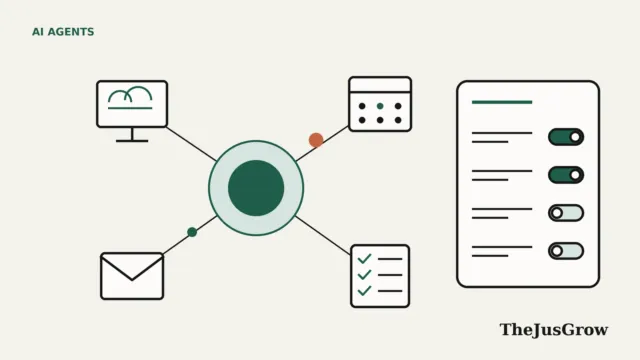
Most AI spreadsheet agents share a pattern. They appear as a panel beside your sheet, they read your data, and they propose or apply edits. The differences lie in who can use them, how much they change on their own and how they show their work.
The four main AI spreadsheet agents compared
Here is a summary of the leading AI spreadsheet agents, based on each company’s documentation. Plans and availability change often, so check the linked sources before you subscribe.
| Tool | Works in | Who can use it (as of September 2026) | How it shows changes |
|---|---|---|---|
| — | — | — | — |
| ChatGPT for Excel and Google Sheets | Excel (desktop and web), Google Sheets (web) | All ChatGPT plans, including Free, according to OpenAI | Proposes changes for you to review; edits can be undone |
| Agent Mode in Excel (Copilot) | Excel | Microsoft 365 Copilot and Microsoft 365 Premium subscribers | Acts directly, with you in control, according to Microsoft |
| Gemini in Google Sheets | Google Sheets (web; lighter version on Android) | Google AI Pro and Ultra, plus several Workspace business plans | Builds and edits in a side-by-side panel |
| Claude in Excel | Excel | All paid Claude plans | Highlights changed cells; nothing saves until you say so |
ChatGPT for Excel and Google Sheets
OpenAI launched ChatGPT for Excel in beta on March 5, 2026, and made it generally available on May 5, 2026, alongside a Google Sheets version. According to OpenAI’s help page, it is available on Free, Go, Plus, Pro and business plans. You install it from the Microsoft Marketplace or the Google Workspace Marketplace.
OpenAI says it can build trackers and budgets, clean messy sheets, fix formulas and explain unfamiliar workbooks. It can also run scenarios and pull information from the web into a sheet. Importantly, OpenAI says ChatGPT proposes changes that you review, and you can undo edits.
OpenAI also documents some limits. Spreadsheet chats don’t use your ChatGPT memory, and OpenAI warns that “VBA and macros may not be fully supported”. It also says outputs “may be incomplete or incorrect”.
OpenAI has also published benchmark claims. On its own internal investment banking test, it says performance rose from 43.7% with GPT-5 to 87.3% with GPT-5.4 Thinking. That is a company claim on a company test, so treat it as a signal rather than proof.
Agent Mode in Excel (Microsoft Copilot)
Microsoft’s option lives inside Excel itself. According to Microsoft’s Excel blog, Agent Mode became generally available on Windows desktop in January 2026, with Mac following. In April 2026, Computerworld reported that Agent Mode was generally available in Word, Excel and PowerPoint for Microsoft 365 Copilot and Microsoft 365 Premium subscribers.
Microsoft says “Copilot takes action rather than just suggesting steps” while you stay in control. It also says Agent Mode can handle complex elements such as pivot tables.
Microsoft has been open about unfinished work. According to Computerworld, planned improvements include better editing for complex finance spreadsheets and “more visibility on changes”. So for now, careful checking remains your job.
Gemini in Google Sheets
Google expanded Gemini in Sheets on April 22, 2026, so it can build and edit complex spreadsheets from a prompt. According to Google’s Workspace Updates blog, it can create a sheet end to end, pull in data, apply formatting and refine an existing model side by side.
For consumers, the feature requires a Google AI Pro or Ultra subscription. Several Workspace business and enterprise plans also include it. You need Workspace smart features turned on, and then you open Gemini from the side panel.
The launch was US English only. However, on June 18, 2026, Google added 28 more languages, including Spanish, French, German, Japanese and Arabic. Google has since added a lighter version to the Android app, which focuses on questions, insights and charts rather than complex edits.
Google also makes a performance claim. It says Gemini in Sheets reached a 70.48% success rate on complex real-world spreadsheet tasks. In other words, even by Google’s own measure, about three in ten complex tasks didn’t succeed.
Claude in Excel
Anthropic aims its add-in at people who build models and analyses. According to Anthropic’s product page, Claude in Excel is generally available on all paid Claude plans.
Anthropic says Claude can answer questions about specific cells, change assumptions without breaking formulas and build models from scratch. On review, the company says you see “highlighted cells in Excel” and that “nothing goes out or gets saved until you say so”.
Which AI spreadsheet agent fits which person?
With AI spreadsheet agents, the best choice usually depends on the software and subscriptions you already have. Here is a practical way to think about it.
- Google Sheets users who already pay for Google AI Pro get Gemini built in.
- For work that runs on Microsoft 365 with Copilot, Agent Mode keeps everything inside Excel.
- To try one without a new subscription, note that OpenAI says ChatGPT for Excel and Sheets works on the Free plan.
- If you already pay for Claude, Anthropic says its Excel add-in is available on all paid plans.
Also think about where your data goes. Each add-in sends workbook content to its provider’s AI service. OpenAI, for instance, says it keeps some logs for 30 days for safety and integrity. Check your employer’s rules before you connect a work spreadsheet.
How to use AI spreadsheet agents well: a practical workflow
The same habits apply to all AI spreadsheet agents, whichever tool you choose. A careful routine turns a fast first draft into something you can trust.
- Save a copy of the file before you start, so you can always go back.
- Describe the goal, the columns and the output you want, instead of a vague “make this better”.
- Ask the agent to explain each formula it writes in one sentence.
- Spot-check totals by hand or with a simple SUM, especially after large edits.
- Review every highlighted or proposed change before you accept it.
- Keep a short note of what you asked for, in case you need to repeat it.
Clear instructions make a big difference. Our guide to writing instructions for AI agents covers the basics. Here are three example prompts in that style:
Create a monthly household budget with columns for category, planned amount and actual amount. Add a total row and a bar chart comparing planned with actual.
Look at the Sales sheet. Explain what each formula in column F does, and flag any that return errors.
Clean this contact list: remove duplicate rows, split full names into first and last name, and don’t delete anything else.
Limits and risks of AI spreadsheet agents
Spreadsheets hide mistakes well, so errors from AI spreadsheet agents are easy to miss. Here are the documented and practical risks.
- Wrong answers that look right: OpenAI warns that outputs may be incomplete or incorrect, and Google’s own success figure implies failures.
- Macros and complex features: OpenAI says VBA and macros may not be fully supported.
- Hidden instructions: a shared spreadsheet could contain text designed to mislead an agent, a form of prompt injection, so be careful with files from strangers.
- Privacy: sensitive data such as salaries or health details goes to the AI provider when you use these tools.
- Over-reliance: an agent can build a model faster than you can understand it, so ask it to explain its logic.
None of these risks is a reason to avoid AI spreadsheet agents altogether. Still, they are reasons to treat AI output as a draft, not a final answer.
Who should use AI spreadsheet agents, and who should wait?
AI spreadsheet agents suit people who build budgets, trackers, simple forecasts or reports and want a faster first draft. They also help anyone who inherits a confusing workbook and needs it explained.
By contrast, it may be worth waiting if your sheets rely heavily on macros, feed legal or financial filings, or hold data you can’t share with an outside provider. In those cases, a human review process matters more than speed. For broader ideas on where agents save time, see our guide to AI agents for personal productivity.
Key takeaways
- AI spreadsheet agents work inside Excel or Google Sheets and can build, edit and explain workbooks from plain-English requests.
- The main options are ChatGPT for Excel and Sheets, Agent Mode in Excel, Gemini in Sheets and Claude in Excel, each with different plan requirements.
- OpenAI says its add-in works on the Free plan, while Gemini in Sheets needs Google AI Pro or Ultra for consumers.
- Every provider warns about errors in some form, so review proposed changes and spot-check totals.
- Save a copy first, write clear instructions and be cautious with spreadsheets from people you don’t know.
AI spreadsheet agents: FAQs
According to OpenAI’s help page, ChatGPT for Excel and Google Sheets is available on all ChatGPT plans, including Free, as of September 2026. Usage limits vary by plan. Gemini in Sheets, Agent Mode in Excel and Claude in Excel require paid subscriptions.
It depends on the tool. OpenAI says ChatGPT proposes changes for you to review, and Anthropic says Claude highlights changed cells and saves nothing until you approve. Microsoft says Copilot’s Agent Mode takes action directly while you stay in control, so saving a copy first is wise.
Support in AI spreadsheet agents is limited. OpenAI says VBA and macros may not be fully supported in ChatGPT for Excel. If your workbook depends on macros, test on a copy before relying on any agent.
Your workbook content goes to the AI provider when you use these tools. OpenAI, for example, says some logs are stored for 30 days for safety and integrity purposes. Check each provider’s policy and your employer’s rules before using sensitive data.
Sources
- OpenAI Help Center, “ChatGPT for Excel and Google Sheets” (accessed September 2026)
- OpenAI, “Introducing ChatGPT for Excel and new financial data integrations” (March 5, 2026, updated May 5, 2026)
- Microsoft Excel Blog, “Agent Mode in Excel is now generally available on desktop” (January 2026)
- Computerworld, “Agent Mode is now available in Microsoft Word, Excel, and PowerPoint” (April 24, 2026)
- Google Workspace Updates, “Build and edit complex spreadsheets with Gemini in Google Sheets” (April 22, 2026)
- Anthropic, “Claude for Microsoft 365” product page (accessed September 2026)
- Google Workspace Updates, “Expanded language support for building and editing spreadsheets with Gemini” (June 18, 2026)
- Google Workspace Updates, “Gemini in Google Sheets is now available on Android devices” (2026)