AI Agent for Canva: How to Use Claude, ChatGPT and Canva AI for On-Brand Designs
Canva now works inside Claude, ChatGPT and Gemini through its official connector, and its own assistant is becoming more agent-like. Here is what each route can do, what it costs and where to keep a human in charge.

In this article
- What does an AI agent for Canva mean in 2026?
- What can the Canva AI Connector do?
- How do you connect an AI agent for Canva to Claude, ChatGPT or Gemini?
- Canva’s built-in AI vs connectors: which should you use?
- Four starter workflows for an AI agent for Canva
- What does an AI agent for Canva cost as of October 2026?
- Permissions, privacy and admin controls
- Risks and what to keep human
- Who is an AI agent for Canva best for?
- Checklist before you connect an AI agent for Canva
- AI agent for Canva: FAQs
- Sources
AI agent for Canva: the short answer
An AI agent for Canva can be Canva’s own assistant or an outside assistant such as Claude, ChatGPT or Gemini connected through Canva’s official AI Connector. The connector lets the assistant search, create, edit, resize and export your designs. However, designs it generates draw on your monthly Canva AI allowance, and it can see everything your account can see.
If you make social posts, flyers or slide decks every week, an AI agent for Canva sounds like an obvious time-saver. You describe the design in a chat, and then the agent builds it in your account. As of October 2026, there are two real ways to do that, and they differ in cost, control and reach.
This guide explains both routes, using Canva’s own help pages and Anthropic’s documentation. TheJusGrow has not tested these tools for this article, so everything below is based on publicly documented capabilities checked on 13 October 2026. Menu labels change often, so treat the setup steps as accurate at the time of writing.
What does an AI agent for Canva mean in 2026?
The first AI agent for Canva is Canva AI, the assistant inside Canva itself. In April 2026, Canva unveiled Canva AI 2.0 as a research preview, starting with the first one million people who found it on the homepage. Canva says it adds conversational design, an “agentic orchestration” layer that coordinates several tools, a memory of your style, connectors to apps such as Gmail and Notion, and scheduled background tasks.
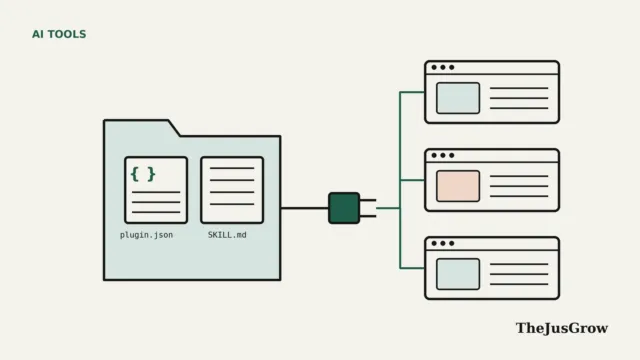
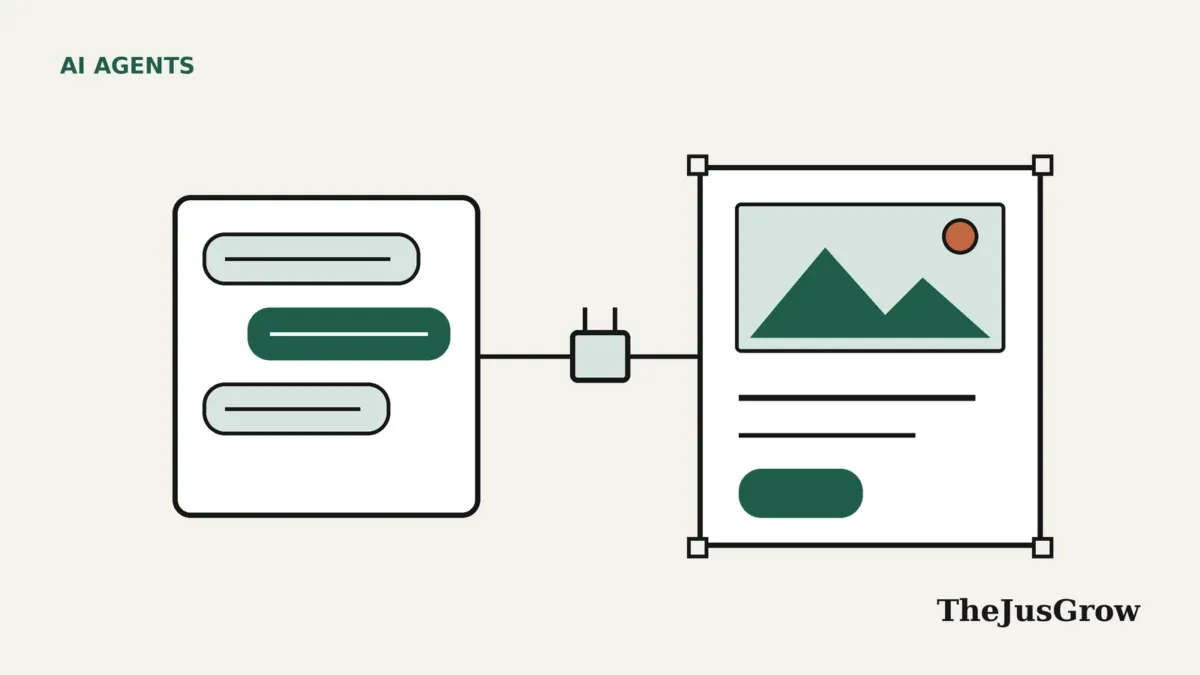
The second kind of AI agent for Canva runs the other way. Instead of working in Canva, you stay in Claude, ChatGPT or Gemini, and the assistant reaches into Canva for you. Canva calls this the Canva AI Connector, and it runs on the Canva MCP server. If MCP is new to you, our Model Context Protocol explainer covers the basics, while our piece on agent plugins explains how connectors fit in.
One caution on status. Canva’s AI page still described Canva AI 2.0 as “coming soon” when we checked, whereas its pricing page lists it on Pro and Business. So the fairest summary is that it has been rolling out since the April preview, and availability may vary by account.
What can the Canva AI Connector do?
According to Canva, an AI agent for Canva connected through the AI Connector can do the following:
- Generate, edit, manage and search your designs from a chat.
- Open a design and pull out its text and images.
- Apply your Brand Kit, so colours and fonts stay consistent.
- Import a PDF or PowerPoint file from a link as a new design.
- Read comments, filter unresolved feedback and reply to it.
- List folder contents and export finished files.
- Resize designs, although this needs a paid Canva plan.
Canva also lists autofill for brand templates and auto-tagging, and here its own pages disagree. One help page says autofill works on every plan except Free and Pro Lite. By contrast, the ChatGPT help page and the connector page say it is currently Enterprise only. Until Canva settles this, assume autofill needs Enterprise unless your account shows it.
Canva’s connector support page lists more than 20 compatible tools, including Microsoft Copilot and Perplexity. In addition, Canva notes that this connector is not the same as its separate Developer MCP Server, which is for people building Canva apps.
How do you connect an AI agent for Canva to Claude, ChatGPT or Gemini?
If you use Canva on a team plan, check with your admin first. Canva lets admins switch the AI Connector on or off under Admin Dashboard, then Controls and Permissions, then Third-party integrations. Once it is off, existing connections stop working.
Claude
- In Claude, open Settings, then Connectors.
- Find Canva and follow the prompts to sign in and authorise it.
- In a new chat, turn Canva on from that chat’s connector menu.
According to Anthropic’s help centre, directory connectors on the web need a paid Claude plan. You also can’t add connectors in Claude’s phone apps, though ones added on the web appear there afterwards. So if you want Claude as your AI agent for Canva, budget for a paid plan.
ChatGPT
- In ChatGPT on desktop, open Settings and go to the plugins section.
- Add Canva, then sign in and authorise it.
- On ChatGPT Business or Enterprise, ask an admin to enable apps and connectors first.
Canva’s ChatGPT help page adds two warnings. First, only designs you select in ChatGPT are saved to your Canva account. Second, ChatGPT sometimes produces Canva-looking links that don’t lead to a real design, so open designs from the preview or from your Canva projects instead.
Gemini
To use Gemini as an AI agent for Canva, Canva says you connect your account and then type @Canva in a prompt. Prompts can also reference your Brand Kit. We could not confirm which Gemini plans are required, so check Google’s own settings.
Canva’s built-in AI vs connectors: which should you use?
The right AI agent for Canva depends on where you already spend your working day. This table summarises the documented differences as of October 2026.
| Built-in Canva AI | Claude + Canva | ChatGPT + Canva | Gemini + Canva | |
|---|---|---|---|---|
| Where you work | The Canva homepage or editor | A Claude chat | A ChatGPT chat | Gemini, using @Canva |
| Strengths | Memory, scheduling and brand features, according to Canva | Search, create and edit designs, plus comments and folders | Create and preview in chat, so you rarely leave it | Find, create and resize, also using your Brand Kit |
| Assistant plan | No extra plan needed | Paid Claude plan for web connectors | Admins must enable it on Business plans | Not stated by Canva |
| Uses Canva AI allowance | Yes | It does, according to Canva | Also yes, per Canva | Not stated explicitly |
| Status | AI 2.0 still rolling out | Live, with no beta label | Available now | Listed as available |
If you design inside Canva all day, its built-in assistant is the natural choice. However, if your writing, research and planning already happen in Claude or ChatGPT, the connector saves you from copying text between tabs.
Four starter workflows for an AI agent for Canva
Each workflow uses capabilities Canva documents. Before you start, ask your AI agent for Canva to list the tools it can see. That quick step shows you exactly what it is allowed to do.
1. Turn a blog post into on-brand social graphics
Paste your post into the chat, then ask for three caption ideas and one social design using your Brand Kit. Open the result in Canva to check spacing, logos and text. On a paid plan, you can also start from a shared brand template, which keeps layouts consistent.
2. Resize one design for several platforms
Ask the assistant to find a design by its title and resize it into an Instagram story and a LinkedIn post. Then export the files. Remember that resizing needs a paid plan, and each generation may use your AI allowance.
3. Draft a presentation from notes or a PDF
Give the assistant a link to a PDF or PowerPoint file and ask it to import it as a Canva design. Alternatively, paste an outline and ask for a short deck. Then finish the slides in Canva, because layout fine-tuning is still easier by hand.
4. Triage feedback on a design
Ask the assistant to list unresolved comments on a design and draft replies. A person should still approve each reply before it is posted, since comments often involve clients.
List the Canva tools you can use. Then find the design called “Autumn sale flyer” and resize it for an Instagram story. Do not export, share or delete anything until I approve it.
Our guide on writing instructions for AI agents explains how to phrase limits like the last sentence above.
What does an AI agent for Canva cost as of October 2026?
Cost comes from three places: your Canva plan, your AI allowance and, if you use the connector, your assistant’s plan.
- Canva plans: Canva’s pricing page lists Free at $0, Pro at US$144 a year for one person, and Business at US$250 a year per person, before tax. Enterprise has no public price.
- AI allowance: according to Canva’s AI usage page, Free and Pro Lite get up to 20 uses a month. Pro, Teams and Nonprofits get up to 200 Premium uses or 20 Ultra uses, while Business and Enterprise get 400 or 40.
- Connector use counts: Canva says designs generated with Canva AI inside ChatGPT, Claude and Copilot also draw from that allowance.
- AI Pass: Canva sells an AI Pass add-on at US$100 per person a month for heavier use. However, it isn’t available on Free, Education or Enterprise.
Team allowances are per person rather than pooled, and you can check usage under Settings, then Billing, then AI usage. For a wider look at credits and caps, see our AI agent pricing guide.
Permissions, privacy and admin controls
Any AI agent for Canva that uses the connector gets the same permissions as Canva’s Connect API. In practice, that means it can reach any project you can already view, including shared folders. So if you work on client folders, the assistant can see those too.
- Training: according to Canva’s privacy page, Canva uses your content to improve its AI only if your privacy settings allow it. Canva also says it doesn’t do this on Business, Teams or Enterprise accounts.
- Third parties: the assistant you connect follows its own terms, so check Claude’s or ChatGPT’s data settings as well.
- Disconnecting: in Canva, go to Settings, then Your profile, then Integrations connected to Canva. Access stops immediately, while your designs stay.
- Rights: Canva claims no copyright over AI output. However, it does not guarantee that output is cleared for use, and its Canva Shield indemnity covers only eligible Enterprise customers.
Our AI agent permission settings guide and our checklist for reviewing connected apps show how to audit access on the assistant’s side too.
Risks and what to keep human
An AI agent for Canva can speed up drafts, but several decisions still need a person:
- Brand approval, ideally through the approvals feature on Business plans.
- Licensing checks, especially for AI images that resemble existing works.
- Accessibility, such as alt text, colour contrast and readable font sizes.
- Prices, offers and factual claims printed on a graphic.
- The final step of posting or sending anything publicly.
Prompt injection is another risk. Text inside an imported PDF, a web link or a comment could try to steer the assistant. That is why approval steps matter, as our prompt injection explainer explains. Finally, watch for cost creep, because every generated design uses part of your allowance.
Who is an AI agent for Canva best for?
An AI agent for Canva suits solo creators and small marketing teams who already plan content in Claude or ChatGPT. It also helps anyone who repurposes the same material into many formats each week.
On the other hand, some people should skip it or wait. Designers who need pixel-perfect control will still work faster by hand. Teams whose admin has disabled third-party integrations can’t use the connector at all. Meanwhile, Free users who plan heavy generation will hit the 20-use monthly limit quickly.
Checklist before you connect an AI agent for Canva
- Sign in with the right Canva account, especially if you have a work and a personal one.
- Ask your admin whether the AI Connector is enabled.
- Check whether your assistant needs a paid plan.
- Set up your Brand Kit first, so designs start on brand.
- Ask the assistant to list its Canva tools before the first task.
- Watch AI usage under Settings, then Billing.
- Review every design before export or posting.
- Disconnect from both sides when you no longer need it.
Key takeaways
- An AI agent for Canva is either Canva’s own assistant or Claude, ChatGPT or Gemini using the official AI Connector.
- The connector can search, create, edit, resize and export designs, and it can also handle comments.
- Designs generated through Claude, ChatGPT or Copilot use your monthly Canva AI allowance.
- The connector sees everything your account can see, including shared folders.
- Keep brand approval, licensing checks and publishing with a person.
AI agent for Canva: FAQs
Yes. Canva calls it the Canva AI Connector, and it runs on the Canva MCP server. Canva first launched an MCP server and a ChatGPT connector in June 2025.
Yes, you can connect on Canva Free. However, resizing and brand template search need a paid plan, and Free includes up to 20 AI uses a month.
Only if your privacy settings allow it, according to Canva. Canva also says it doesn’t use content from Business, Teams or Enterprise accounts this way.
Yes. Canva’s help page says designs generated with Canva AI inside ChatGPT, Claude and Copilot draw from your monthly allowance.
Sources
- Canva, “Canva AI Connector” (checked 13 October 2026)
- Canva Help Center, “Connect Canva to an AI assistant” (checked 13 October 2026)
- Business Wire, “Canva Unveils Canva AI 2.0” (Canva press release, 16 April 2026)
- Canva Help Center, “Connect Claude to Canva” (checked 13 October 2026)
- Canva Help Center, “Connect ChatGPT to Canva” (checked 13 October 2026)
- Anthropic Help Center, “Browsing and connecting to tools from the directory” (checked 13 October 2026)
- Canva Newsroom, “Canva expands design creation inside Google Gemini and AI Search” (2026)
- Canva Help Center, “Understanding your AI usage” (checked 13 October 2026)
- Engadget, “Canva starts previewing a more powerful version of its AI assistant” (16 April 2026)
- Canva Help Center, “Understanding AI Pass” (checked 13 October 2026)
- Canva, pricing page (checked 13 October 2026)
- Business Wire, “Canva Breaks Ground as First Design Connector for OpenAI’s ChatGPT” (26 June 2025)
- Canva Trust Center, “Privacy” (checked 13 October 2026)
- Canva, “Canva Shield” (checked 13 October 2026)