ChatGPT Site Tools Explained: How ChatGPT Uses WebMCP on Websites
OpenAI's desktop browser can now use actions that websites publish, instead of clicking around. Here's how site tools work, what ChatGPT asks first and how to switch them off.

In this article
- What are ChatGPT site tools?
- Where does the feature work?
- How do you use ChatGPT site tools?
- What might it look like in practice?
- What does ChatGPT ask before it acts?
- How do you turn the feature off?
- What can you actually do with ChatGPT site tools?
- ChatGPT site tools vs ChatGPT agent
- Is it safe to use ChatGPT site tools?
- Who should try ChatGPT site tools, and who should wait?
- ChatGPT site tools: FAQs
- Sources
ChatGPT site tools: the short answer
ChatGPT site tools let ChatGPT use actions that a website offers directly, such as searching, filtering or updating a basket, instead of clicking through the page. They run on WebMCP, a proposed web standard. As of September 2026, ChatGPT site tools work only in the ChatGPT desktop app’s built-in browser, not in Chrome. ChatGPT asks permission before using them, and you can switch them off in the browser’s settings.
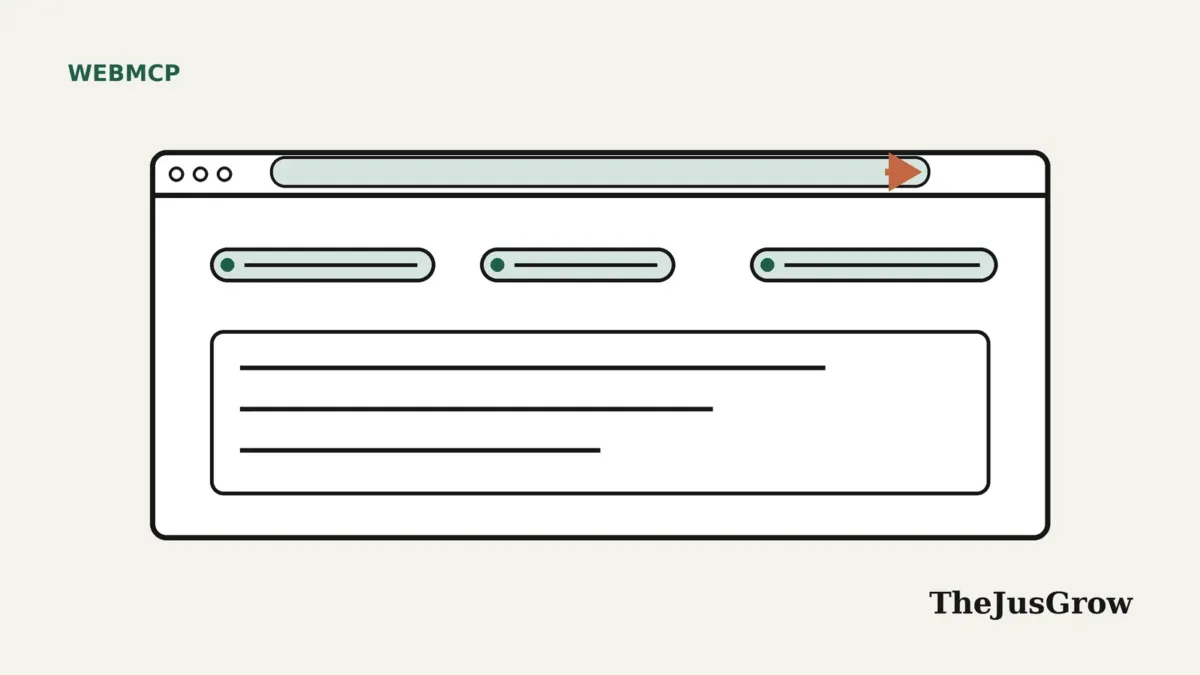
ChatGPT site tools are one of the first ways ordinary people can try WebMCP, a new standard that lets websites offer clear actions to AI agents. OpenAI added them to the ChatGPT desktop app’s built-in browser on August 25, 2026. If you use that browser, you may already have seen a small arrow in the address bar on some sites.
This guide explains what ChatGPT site tools are, how to use them, what ChatGPT asks before it acts, and how to turn them off. It is based on OpenAI’s help page on site tools, its developer notes and news coverage, checked in September 2026. TheJusGrow has not tested the feature for this article.
What are ChatGPT site tools?
Normally, when ChatGPT works in a browser, it acts like a person. It looks at the page, then clicks and types. That works, but it can be slow and it can go wrong.
ChatGPT site tools take a different route. Some websites now publish a list of actions, called tools, using WebMCP. For example, a shop might offer “search the catalogue” or “update the cart.” When you visit that site in ChatGPT’s built-in browser, ChatGPT can see those tools and use them directly.
OpenAI’s help page says site tools let ChatGPT “find information, update content, and work with interactive tools” on a website. In other words, the site tells ChatGPT what it can do, so ChatGPT doesn’t have to guess. For the background, see what is WebMCP.
Where does the feature work?
This is the part that surprises people. According to OpenAI, site tools are “currently available only in the ChatGPT desktop app’s built-in browser, not in Chrome.” So if you use ChatGPT in a normal web browser tab, you won’t see them.
There are other limits too. OpenAI’s developer notes say site tools aren’t available in Enterprise or Edu workspaces. They also depend on the model and on the rollout reaching your account. The notes mention GPT-5.6 Sol and GPT-6 Sol, while Search Engine Journal reported that GPT-5.6 Luna has WebMCP turned off. OpenAI also says ChatGPT Work and Codex can use site tools. Because rollouts change, check the help page for the current details.
How do you use ChatGPT site tools?
OpenAI describes a simple process. Here it is in steps:
- Open the ChatGPT desktop app and use its built-in browser.
- Visit a website. Sign in to the site if you need to.
- Look for an arrow in the address bar. That shows the site offers tools.
- Ask ChatGPT to do something on the page, in plain words.
- ChatGPT picks the right tool and asks your permission where needed.
For developers, OpenAI adds that the address bar’s site tools panel groups tools by type, for example “3 read, 7 write tools.” Read tools only look up information. Write tools change something, such as adding an item to a basket.
What might it look like in practice?
Here is an illustration based on OpenAI’s description, not a test. Say you are on a supporting online shop in the ChatGPT desktop browser. You notice the arrow in the address bar, so you ask, “Find a waterproof jacket under £100 in medium and add the best-rated one to my basket.”
First, ChatGPT might use a read tool to search the catalogue with your filters. Next, it could compare the results and pick one. Then, before changing your basket, it may ask your permission to use the site’s write tool. Finally, if you move on to checkout, you would confirm payment yourself.
Compare that with the old way. Without site tools, ChatGPT would have to find the search box, type, open filters, scroll and click. Each step is a chance for a small mistake. With tools, the shop tells ChatGPT exactly how its search and basket work.
What does ChatGPT ask before it acts?
Safety is central to how ChatGPT site tools work. According to OpenAI’s help page, ChatGPT “asks for permission before interacting with a website.” It also needs your confirmation before sensitive steps, such as sharing personal information or making a purchase.
Importantly, OpenAI says ChatGPT explains “what information will be shared, where it will be sent, and why” before it goes ahead. OpenAI’s developer notes add that each tool call gets a safety review before it runs, and that confirmation rules apply to actions such as messaging, purchases and deletions.
So in practice, expect a few prompts. They slow things down slightly. However, they are there to stop the agent doing something you didn’t intend.
How do you turn the feature off?
You can switch the feature off at any time. OpenAI’s steps are:
- Open the built-in browser’s Browser settings.
- Select Permissions.
- Turn off Enable site tools.
After that, ChatGPT will go back to working with pages the usual way, by reading them and clicking. You can switch site tools back on later.
What can you actually do with ChatGPT site tools?
That depends on the website. Not every site offers tools, and those that do offer different ones. OpenAI’s help page says plainly that “not all websites support site tools,” and that tools vary by site and page.
Still, some big platforms have already added WebMCP. For instance, Shopify switched on tools for its Liquid storefronts in August 2026. Those include searching the catalogue, updating the cart and going to checkout. So on a supporting Shopify store, ChatGPT could search products and fill a basket for you, and then hand over at checkout. Our guide to Shopify WebMCP explains what that means for shoppers.
Search Engine Journal lists other examples from OpenAI: searching documents, editing files, exploring dashboards, comparing travel options and updating shopping carts. Meanwhile, OpenAI ran a WebMCP Challenge for developers from August 25 to September 4, 2026, with winners announced on September 23. That suggests more sites will experiment with ChatGPT site tools soon.
ChatGPT site tools vs ChatGPT agent
It is easy to mix these up, so here is a simple comparison.
| ChatGPT agent (clicking and typing) | ChatGPT site tools | |
|---|---|---|
| How it uses a site | Reads the page and clicks like a person | Calls actions the website publishes |
| Needs the site to do anything? | No | Yes, the site must support WebMCP |
| Where it works | ChatGPT’s agent browser | The desktop app’s built-in browser |
| Speed and reliability | Can be slower and more fragile | Designed to be faster and more precise |
| Confirmations | Asks before consequential steps | Asks permission and before sensitive steps |
In other words, site tools don’t replace the agent. They give it a better way to use sites that support them. On other sites, ChatGPT still falls back on reading and clicking.
Is it safe to use ChatGPT site tools?
Site tools come with safeguards, but no AI browsing is risk-free. OpenAI says site tools include protections against data being sent out and against prompt injection. Prompt injection is when hidden text tries to steer the AI; we explain it in our guide to prompt injection.
OpenAI gives one clear rule: “Enter passwords directly on the website, never in your ChatGPT conversation.” Beyond that, a few habits help:
- Read every confirmation. Check what will be shared and where.
- Start with low-risk tasks. Searching and comparing are safer than buying.
- Use sites you trust. A tool is only as trustworthy as the website offering it.
- Stop if something looks wrong. Unexpected requests for personal details are a warning sign.
Researchers have also shown that compromised third-party scripts on a page could tamper with its tools in lab tests. That is a reason for caution, not panic. Our WebMCP security guide covers the risks in more detail.
Who should try ChatGPT site tools, and who should wait?
Site tools make most sense if you already use the ChatGPT desktop app and its browser for tasks like shopping research, travel comparisons or working in online tools. In that case, you may notice faster, more reliable help on supporting sites.
By contrast, you can safely ignore them for now if you mainly use ChatGPT in a normal browser, or on a work account with Enterprise or Edu. Also, if you would rather ChatGPT never acts on websites, simply leave the setting off. Either way, it is worth knowing the feature exists, because more sites are likely to add WebMCP over the coming months.
Key takeaways
- ChatGPT site tools let ChatGPT use actions a website publishes through WebMCP, instead of clicking around the page.
- As of September 2026 they work only in the ChatGPT desktop app’s built-in browser, not in Chrome, and not in Enterprise or Edu workspaces.
- An arrow in the address bar shows a site offers tools; ChatGPT asks permission and confirms before sensitive steps.
- You can turn them off in Browser settings, then Permissions, then Enable site tools.
- Enter passwords on the website itself, never in the ChatGPT conversation.
ChatGPT site tools: FAQs
They are actions that a website publishes using WebMCP, which ChatGPT can use directly in its desktop app’s built-in browser, instead of clicking and typing on the page.
No. OpenAI says site tools are currently available only in the ChatGPT desktop app’s built-in browser, not in Chrome.
Open Browser settings in the built-in browser, select Permissions, and turn off Enable site tools.
OpenAI says ChatGPT asks for permission before interacting with a website and needs your confirmation before sensitive activities such as purchases or sharing personal information.
Sources
- OpenAI Help Center, “Using site tools in the ChatGPT desktop app” (2026)
- ChatGPT Learn, “Site tools” developer guide (accessed September 2026)
- OpenAI Developer Community, “Build Agent Ready Websites with ChatGPT” (August 25, 2026)
- OpenAI Help Center, “ChatGPT agent” (updated September 2026)
- OpenAI, “WebMCP Challenge” (2026)
- Search Engine Journal, “OpenAI Adds WebMCP Site Tools To ChatGPT’s Browser” (August 27, 2026)
- Shopify, “WebMCP support for Liquid and Hydrogen storefronts” (August 5, 2026)
- Lee et al., “WebMCP Tool Surface Poisoning”, arXiv (June 4, 2026)